mdgreet
A clean Material Design 3 greeter for greetd, built with Rust and Slint.
mdgreet is a fast, visually appealing, and highly customizable login screen for Linux environments using greetd. It leverages the power of Rust for performance and safety, alongside the Slint UI framework to provide a modern, reactive interface based on Material Design 3 guidelines.
Features
- Material Design 3: Adheres to modern design principles, providing a familiar and polished look.
- Dynamic Theming: Automatically generate a complete color palette from your chosen wallpaper or a specific seed color.
- Fast and Lightweight: Built with Rust, ensuring quick startup times and minimal resource usage.
- Internationalization (i18n): Native support for multiple languages.
- Wayland Native: Runs perfectly under Wayland compositors like Cage or Sway.
Interface Preview
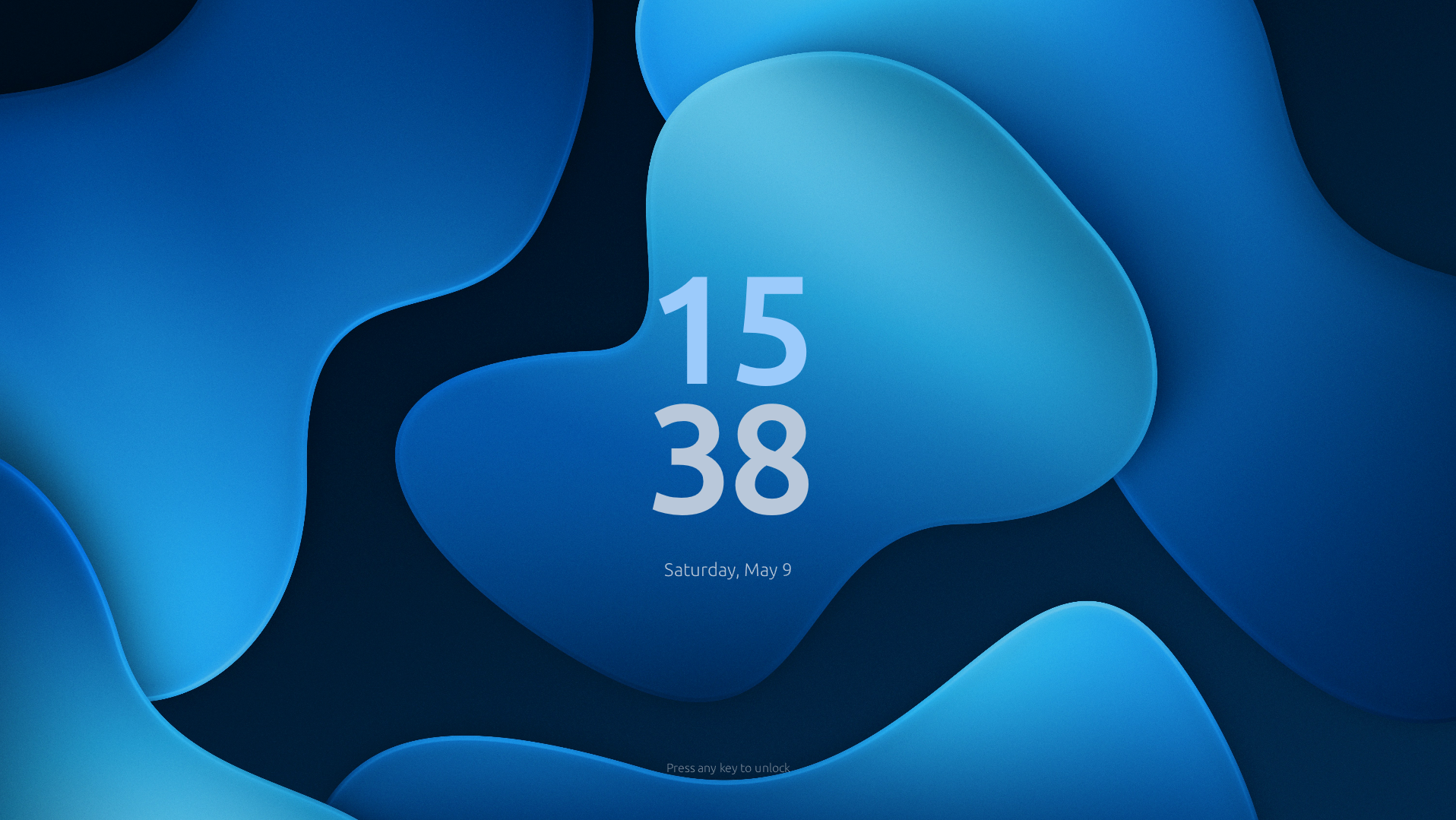
The main screen featuring a clean Material Design 3 clock.
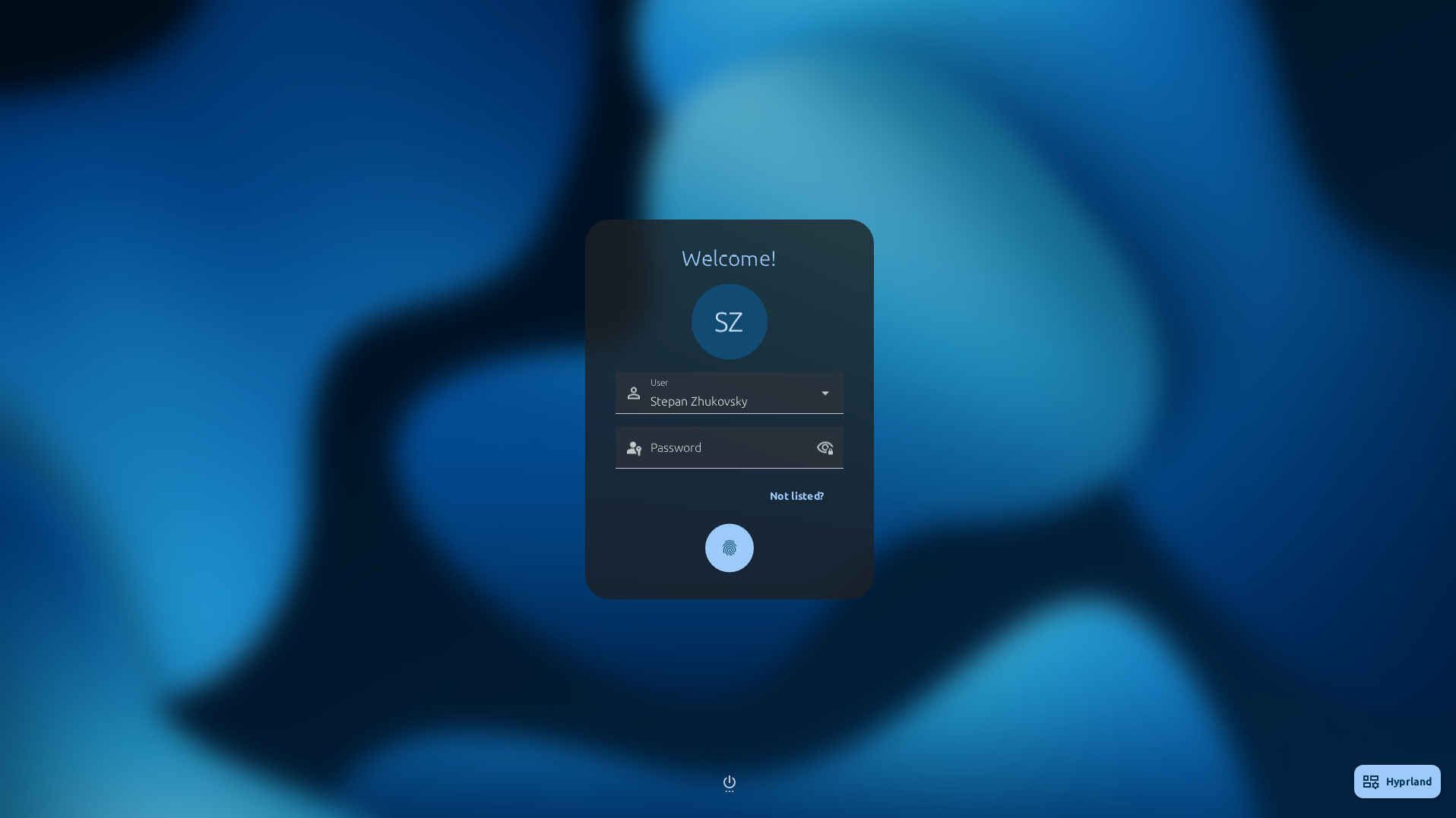
The login card with smooth background blur transition.
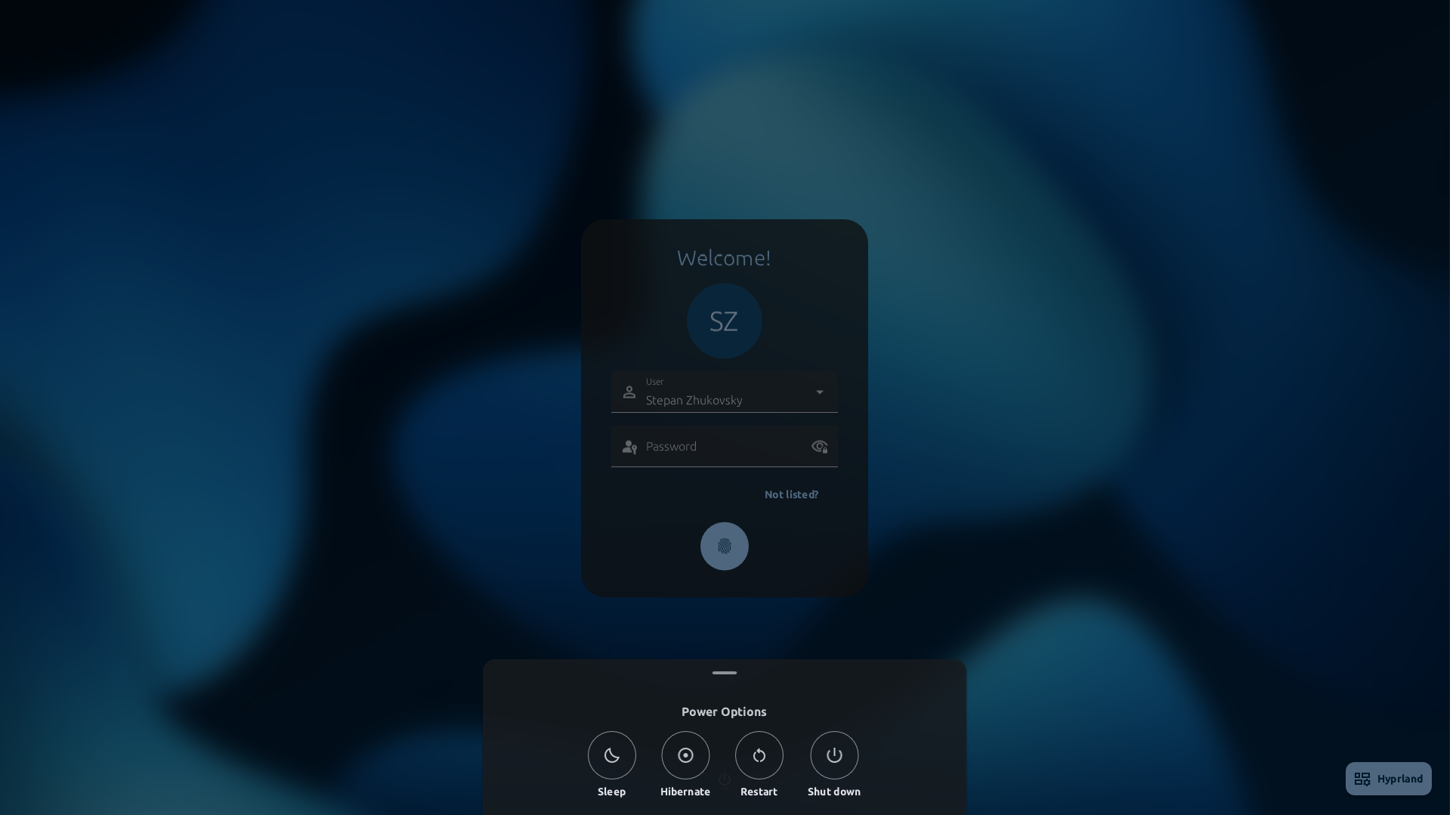
Integrated power management menu.
Installation
The recommended way to install mdgreet is via Nix, but it can also be built and installed manually on any standard Linux distribution.
Nix (Flakes)
If you are using NixOS with Flakes, there are several ways to integrate mdgreet. The most common approach is to add it as a flake input and then pass it to your system configuration.
1. Add to your Flake Inputs
In your flake.nix:
{
  inputs = {
    nixpkgs.url = "github:NixOS/nixpkgs/nixos-unstable";
    mdgreet.url = "github:MOIS3Y/mdgreet";
  };

  outputs = { self, nixpkgs, mdgreet, ... }: {
    nixosConfigurations.myHost = nixpkgs.lib.nixosSystem {
      system = "x86_64-linux";
      # Pass the 'mdgreet' input to your modules
      specialArgs = { inherit mdgreet; };
      modules = [ ./configuration.nix ];
    };
  };
}
2. Include as a System Package
Then, in your configuration.nix, you can access the package and add it to your system:
{ pkgs, mdgreet, ... }: {
  environment.systemPackages = [
    mdgreet.packages.${pkgs.stdenv.hostPlatform.system}.default
  ];
}
Alternative: Using Overlays
For a more seamless integration, you can add mdgreet as an overlay. This allows you to use pkgs.mdgreet anywhere in your configuration:
{
  nixpkgs.overlays = [
    (final: prev: {
      mdgreet = mdgreet.packages.${prev.stdenv.hostPlatform.system}.default;
    })
  ];

  environment.systemPackages = [ pkgs.mdgreet ];
}
Building from Source
To build mdgreet manually, you need the Rust toolchain and several development libraries.
Prerequisites
Ensure the following dependencies are installed on your system:
- Build-time:
cargo,rustc,pkg-config,gettext. - Runtime:
wayland,libxkbcommon,fontconfig,mesa(OpenGL),freetype.
1. Compilation
Clone the repository and build the release binary:
git clone https://github.com/MOIS3Y/mdgreet.git
cd mdgreet
cargo build --release
The binary will be generated at target/release/mdgreet. Copy it to your system path:
sudo cp target/release/mdgreet /usr/local/bin/
2. Install Translations
mdgreet uses gettext for internationalization. Compiled locales must be placed in the standard system locale directory.
# Locate and copy compiled locales
LOCALES_DIR=$(find target -name locales -type d | head -n 1)
sudo cp -r "$LOCALES_DIR"/* /usr/share/locale/
3. Setup System Directories
mdgreet requires specific directories for caching dynamic themes and storing logs. These must be owned by the user running the greeter (usually greeter).
# Create directories
sudo mkdir -p /var/cache/mdgreet
sudo mkdir -p /var/log/mdgreet

# Set permissions
sudo chown -R greeter:greeter /var/cache/mdgreet
sudo chown -R greeter:greeter /var/log/mdgreet
Setup with greetd
mdgreet is designed to be run by greetd, a minimal and flexible login manager daemon.
To use mdgreet, you need to configure greetd to launch a Wayland compositor (like cage, sway, or niri), which in turn runs mdgreet.
Note
The
mdgreet.tomlconfiguration file is entirely optional. If not provided, mdgreet will use sensible defaults. However, creating it is highly recommended to customize the appearance to your liking.
Please choose your distribution type below:
NixOS Configuration
If you are using NixOS, configuring greetd to use mdgreet is straightforward. You can define everything declaratively in your configuration files.
Recommended: Using niri (Multi-monitor friendly)
While cage is a common choice for greeters, it has limitations with multi-monitor setups (e.g., determining which exact monitor displays the greeter).
Using niri is highly recommended. It allows you to strictly define the output monitor, force fullscreen mode, and disable keybindings so users cannot accidentally close the greeter or interact with the compositor.
Here is an example configuration using niri:
{ config, pkgs, lib, ... }:

let
  mdgreetPkg = pkgs.mdgreet;

  # 1. Define your mdgreet configuration
  mdgreetConfig = {
    appearance = {
      greeting = "Welcome to NixOS!";
      theme.mode = "dark";
      theme.seed_color = "#89b4fa"; # Catppuccin Mocha Blue
    };
  };

  # 2. Define the niri configuration specifically for the greeter
  niriConfig = pkgs.writeText "niri-greet.kdl" ''
    // Specify the target monitor (replace DP-1 with your actual monitor name)
    // You can find monitor names by running `niri msg outputs` in a normal session.
    output "DP-1" {
      focus-at-startup
      layout {
        // Match the background color to your mdgreet theme to avoid flashes
        background-color "#1e1e2e"
      }
    }

    // Disable all hotkeys so the user cannot close the greeter or interact with niri
    hotkey-overlay { skip-at-startup; }

    window-rule {
      match at-startup=true
      open-fullscreen true
    }

    // Launch mdgreet and exit niri when mdgreet is done
    spawn-sh-at-startup "${lib.getExe mdgreetPkg} ; ${lib.getExe pkgs.niri} msg action quit --skip-confirmation"
  '';
in
{
  # Generate the TOML configuration file
  environment.etc."greetd/mdgreet.toml".source =
    (pkgs.formats.toml {}).generate "mdgreet.toml" mdgreetConfig;

  # Make sure greetd has the necessary directories
  systemd.tmpfiles.settings."10-mdgreet" = {
    "/var/cache/mdgreet".d = { mode = "0755"; user = "greeter"; group = "greeter"; };
    "/var/log/mdgreet".d =   { mode = "0755"; user = "greeter"; group = "greeter"; };
  };

  # Configure the greetd service
  services.greetd = {
    enable = true;
    settings = {
      default_session = {
        # Launch niri with our custom config
        command = "${lib.getExe pkgs.niri} --config ${niriConfig}";
        user = "greeter";
      };
    };
  };

  # Ensure necessary packages are available
  environment.systemPackages = with pkgs; [ niri dbus ];
}
Alternative: Using cage (Single monitor)
If you have a single monitor or don’t mind the greeter appearing on the default screen, you can use cage. It’s a kiosk compositor designed to run a single full-screen application.
{ config, pkgs, ... }:

let
  mdgreetPkg = pkgs.mdgreet;
  mdgreetConfig = {
    appearance = { greeting = "Welcome!"; }
  };
in
{
  environment.etc."greetd/mdgreet.toml".source =
    (pkgs.formats.toml {}).generate "mdgreet.toml" mdgreetConfig;

  systemd.tmpfiles.settings."10-mdgreet" = {
    "/var/cache/mdgreet".d = { mode = "0755"; user = "greeter"; group = "greeter"; };
    "/var/log/mdgreet".d =   { mode = "0755"; user = "greeter"; group = "greeter"; };
  };

  services.greetd = {
    enable = true;
    settings = {
      default_session = {
        # -s ensures it runs smoothly via systemd
        command = "${pkgs.cage}/bin/cage -s -- ${mdgreetPkg}/bin/mdgreet";
        user = "greeter";
      };
    };
  };

  environment.systemPackages = with pkgs; [ cage dbus ];
}
Standard Linux Configuration
If you are configuring greetd manually on a non-NixOS distribution (e.g., Arch Linux, Debian, Fedora), you will need to edit the configuration files manually.
1. Create mdgreet Configuration
Create the configuration file at /etc/greetd/mdgreet.toml:
[appearance]
greeting = "Welcome!"
theme.mode = "dark"
theme.seed_color = "#89b4fa" # Catppuccin Mocha Blue
Ensure the greeter user has permission to read this file.
2. Configure the Compositor and greetd
You need a Wayland compositor to run mdgreet. We strongly recommend niri for its superior multi-monitor handling, but cage is a simpler alternative for single-monitor setups.
Recommended: Using niri (Multi-monitor friendly)
niri allows you to strictly define the output monitor, force fullscreen mode, and disable keybindings so users cannot accidentally close the greeter.
Step 1: Install niri via your package manager.
Step 2: Create a special niri config file for the greeter, for example at /etc/greetd/niri.kdl:
// Specify the target monitor (replace DP-1 with your actual monitor name).
// You can find monitor names by running `niri msg outputs` in a normal session.
output "DP-1" {
  focus-at-startup
  layout {
    // Set a background color that matches your theme
    background-color "#1e1e2e"
  }
}

// Disable all hotkeys so the user cannot close the greeter
hotkey-overlay { skip-at-startup; }

// Force the greeter to open in full screen
window-rule {
  match at-startup=true
  open-fullscreen true
}

// Launch mdgreet. When mdgreet exits (e.g., after login),
// tell niri to quit, which hands control back to greetd.
spawn-sh-at-startup "mdgreet ; niri msg action quit --skip-confirmation"
Step 3: Edit your /etc/greetd/config.toml to use niri:
[terminal]
vt = 1

[default_session]
# Launch niri with the specific config file we created
command = "niri --config /etc/greetd/niri.kdl"
user = "greeter"
Alternative: Using cage (Single monitor)
If you have a single monitor, you can use cage (a simple kiosk compositor).
Step 1: Install cage via your package manager.
Step 2: Edit your /etc/greetd/config.toml:
[terminal]
vt = 1

[default_session]
# Launch cage. The -s flag is recommended when running under a display manager.
command = "cage -s -- mdgreet"
user = "greeter"
Configuration
mdgreet reads its configuration from a TOML file.
By default, it looks for the configuration file in standard locations like /etc/greetd/mdgreet.toml. You can also specify a custom path using the -c or --config command-line argument.
mdgreet -c /path/to/my/mdgreet.toml
Full Configuration Example
Here is a comprehensive example showing all available settings:
[appearance]
# The greeting message displayed above the avatar on the login card
greeting = "Welcome Back!"

# Opacity of the login card and power menu (0.0 to 1.0)
opacity = 0.85

# Global font family for UI elements
font_family = "Inter"

[appearance.clock]
font_family = "FlexRounded"
font_size = 220
font_weight = 700

[appearance.theme]
# "default", "slint", "auto", "seed", or "custom"
name = "auto"
mode = "dark"
seed_color = "#1e66f5" # Used only if name = "seed"
# path = "/etc/greetd/my-mdgreet-theme.json" # Used only if name = "custom"

[appearance.background]
path = "/usr/share/backgrounds/my-wallpaper.jpg"
blur = 15.0
color = "#1e1e2e" # Fallback color

[power]
shutdown = "systemctl poweroff"
reboot = "systemctl reboot"
sleep = "systemctl suspend"
hibernate = "systemctl hibernate"

# --- Advanced / Technical Settings ---
# These settings are primarily for debugging or environments with non-standard paths.
# Most users can safely omit these blocks.

[logging]
level = "info"
# path = "/var/log/mdgreet/mdgreet.log"

[cache]
# path = "/var/cache/mdgreet"
Navigate through the subsections to learn more about specific configuration blocks.
Appearance Configuration
The [appearance] section of your configuration file controls the general layout and typography of mdgreet.
Greeting Message
You can customize the text displayed on the login card just above the user selection.
[appearance]
greeting = "Welcome to NixOS!"
Opacity
Controls the transparency of the login card and the power menu. Accepts a float value between 0.0 (fully transparent) and 1.0 (fully opaque).
[appearance]
opacity = 0.75
Typography
You can change the global font family used by the application, as well as specific settings for the large clock displayed on the screen.
[appearance]
# Uses the system's "Noto Sans" font for buttons, inputs, etc.
font_family = "Noto Sans"

[appearance.clock]
# Use a custom font just for the clock
font_family = "JetBrains Mono"
font_size = 200
font_weight = 600
Note
If no font is specified, mdgreet uses its bundled font specifically for the clock. The rest of the interface will automatically fall back to your system’s default sans-serif font.
Theming
mdgreet features a powerful theming engine based on Material Design 3. It can generate full color palettes dynamically or use predefined themes.
All theme settings go under the [appearance.theme] block.
Mode
Themes can run in either light or dark mode.
[appearance.theme]
mode = "dark" # or "light"
Theme Types
The name property defines how the theme is generated.
1. Built-in Themes
Use standard, predefined color schemes. Available options are "default" and "slint".
[appearance.theme]
name = "default"
2. Auto (Material You)
Generates a theme dynamically by extracting the dominant colors from your current background image. This provides a deeply integrated, personalized look.
[appearance.theme]
name = "auto"

[appearance.background]
path = "/path/to/my/wallpaper.jpg"
3. Seed Color
If you want a specific brand color without relying on a wallpaper, use the "seed" theme and provide a HEX color.
[appearance.theme]
name = "seed"
seed_color = "#1e66f5"
4. Custom JSON
For total control over every Material Design color token, you can provide a custom JSON file.
[appearance.theme]
name = "custom"
path = "/etc/greetd/my-mdgreet-theme.json"
Note
The JSON file must follow the structure expected by mdgreet’s internal
MaterialSchemestruct.
Tip
Generating a Custom Theme: You can easily generate a compatible JSON file using the official Material Theme Builder. Simply design your theme there and export it as JSON.
Note: mdgreet fully supports the standard
lightanddarkcolor schemes exported by the tool. High-contrast themes are not currently supported by the underlying library and will be safely ignored if present in the JSON file.
Background Configuration
The background of your greeter is controlled under the [appearance.background] block.
Wallpaper
You can set an image to be used as the background. mdgreet supports standard formats like JPEG and PNG.
[appearance.background]
path = "/usr/share/backgrounds/landscape.jpg"
Blur Effect
To ensure the login card and clock remain legible, mdgreet can apply a Gaussian blur to your wallpaper.
[appearance.background]
# Sigma value for the Gaussian blur.
# Set to 0.0 to disable the blur entirely.
blur = 10.0
Tip
Performance Note: When a blur value is set, mdgreet calculates the blur on the first launch and caches the resulting image to disk. While values up to
10.0process almost instantly (even on 4K images), setting excessively high values might cause a slight delay during the very first boot. Subsequent logins will load instantly from the cache.
Fallback Color
If the image path is missing or the file cannot be loaded, mdgreet will fall back to a solid color. You can define this explicitly, or omit it to let the current theme decide the best background color.
[appearance.background]
color = "#11111b"
Power Management
The [power] section allows you to override the default commands executed when a user interacts with the power menu on the login screen.
By default, mdgreet uses standard systemd (specifically systemctl) commands, which work out-of-the-box on most modern Linux distributions like NixOS, Arch, Fedora, and Ubuntu.
[power]
shutdown = "systemctl poweroff"
reboot = "systemctl reboot"
sleep = "systemctl suspend"
hibernate = "systemctl hibernate"
Non-systemd Distributions
If you are using a distribution that does not use systemd as its init system (such as Void Linux or Artix), you will need to override these commands to match your system’s power management utilities (e.g., loginctl, zzz, or direct shutdown commands).
For example, on a system using elogind:
[power]
shutdown = "loginctl poweroff"
reboot = "loginctl reboot"
sleep = "loginctl suspend"
hibernate = "loginctl hibernate"
Note
Ensure that the
greeteruser has the necessary permissions to execute these commands without a password prompt.
Setting up the Environment
mdgreet is primarily developed within a Nix environment, ensuring reproducible and isolated dependencies.
Prerequisites
- Nix with Flakes enabled.
Entering the Development Shell
Simply navigate to the project root and run:
nix develop
This will drop you into a shell equipped with:
- The Rust toolchain (
cargo,rustc,clippy,rustfmt,rust-analyzer). - Slint dependencies (
slint-lsp,slint-viewer). - Wayland development libraries.
- i18n tools (
gettext). - Documentation tools (
mdbook).
Running the Application Locally
You can run the application directly using Cargo. Note that without a Wayland compositor or greetd running, you must use the --demo flag to simulate a login environment.
cargo run -- --demo
Architecture Overview
mdgreet separates UI layout (Slint) from business logic (Rust) while using Tokio for asynchronous operations like inter-process communication (IPC) with greetd.
Module Structure
The project is structured into clear responsibilities:
src/main.rs: Acts as the pure orchestrator. It parses CLI arguments, initializes logging, sets up the Slint UI instance, and delegates specific features to theapp::modules.src/app/: Contains the core UI logic and event handlers.appearance.rs: Resolves themes (builtin, dynamic, custom), parses colors, handles background blur, and configures fonts.auth.rs: Manages the list of valid system users.login.rs: Orchestrates the authentication flow. It handles theon_logincallback, bridging the synchronous Slint UI with asynchronous Tokio tasks that talk togreetd.session.rs: Discovers available Wayland/X11 compositors on the system.state.rs: Manages UI state persistence, such as remembering the last selected user and their preferred compositor.power.rs: Executes system commands for shutdown, reboot, etc.
src/utils/: Helper utilities.client.rs: TheGreetdClientwhich handles Unix socket IPC using thegreetd_ipcprotocol.cache.rs: Simple LRU-style disk caching for UI state.
Concurrency Model
Slint runs its own event loop on the main thread. We use tokio::spawn within UI callbacks to run blocking or network tasks asynchronously.
When an async task needs to update the UI (e.g., showing an error message after a failed login), we use ui_weak.upgrade_in_event_loop(...) to safely push the update back to the main UI thread without causing deadlocks.
Testing & VM Integration
Testing a greeter locally can be tricky since it requires a Wayland compositor and the greetd daemon running as root.
mdgreet solves this by providing a fully configured, containerized NixOS Virtual Machine.
Running the Test VM
If you have Nix installed, you can spin up the test VM directly from the flake. This VM includes dummy users, a compositor (cage), and is configured to run your local build of mdgreet.
nix run .#vm
This command will:
- Compile mdgreet.
- Build a minimal NixOS qcow2 image.
- Launch QEMU with graphical support.
You can log in using any of the test users (e.g., alice, bob) with the password password.
Running Unit Tests
We use standard Cargo tests for non-UI business logic (like theme parsing).
cargo test
Translations (i18n)
mdgreet natively supports multiple languages using gettext.
Strings are marked for translation in both Rust (gettext("...")) and Slint (@tr("...")).
Managing Translations
We provide Nix-based shell scripts to easily extract and update translations. These are available in your nix develop shell.
1. Extracting Strings
If you add a new string to the code, update the template file (po/mdgreet.pot):
i18n-extract
2. Updating an Existing Language
Merge the new strings from the .pot template into a specific language file (e.g., Russian - ru.po):
i18n-update ru
Then, open po/ru.po in a text editor or a tool like Poedit to translate the empty strings.
3. Adding a New Language
Initialize a new .po file for a language (e.g., French - fr):
i18n-init fr
Testing Translations Locally
You can test translations without changing your system language by prefixing the cargo run command with the LANG environment variable:
LANG=ru_RU.UTF-8 cargo run -- --demo
Changelog
[v0.1.0] - 2026-05-15
Initial Release
The first official release of mdgreet, a clean Material Design 3 greeter for greetd.
Features
- Material Design 3: Full implementation of M3 design language with dynamic color schemes.
- Dynamic Theming: Smart theme generation based on the background image with caching.
- Session Management: Automatic discovery of Wayland and X11 sessions (Hyprland, Niri, Sway, etc.).
- User Discovery: Integration with
AccountsServicefor user listing and LRU-based persistence for the last logged-in user. - Power Management: Built-in menu for Shutdown, Reboot, and Suspend actions.
- Internationalization: Support for multiple languages (EN, RU, DE, ES, FR).
- Security: Full
greetdIPC integration for secure authentication. - Documentation: Comprehensive user and development guides in mdBook format.
Deployment
- Native Nix/NixOS support with Flake and VM testing infrastructure.
- Lightweight and fast async architecture built with Rust and Slint.